Enter your email address:


Using your Windows Live Account, you can share information about your Web Activities within your Network. Lets your Network come to know about your Daily Blog Updates, your Tweets and lots more at one place.  If you add web activities to your profile, updates about them show up across the Windows Live in places such as a person’s profile and on their Windows Live Messenger and also on the home pages of other people in your network.

16-04-2009 20-09-47

To add a Web activities:

  • Visit http://home.live.com and sign in with your Windows Live ID
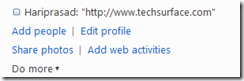
  • Click on Add Web Activities

    16-04-2009 20-14-17

  • Click on Custom Blog to add an RSS or ATOM feed for a blog to your profile.
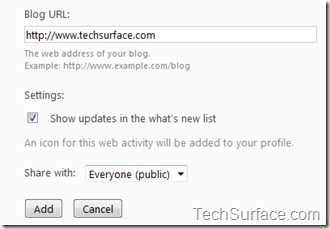
  • Enter  your Blog URL in provided field

    16-04-2009 20-31-42 

  • If you don’t want updates about this activity to appear in What’s new lists, uncheck the box. Click on Share with, to choose who can see your updates.
  • Click Add. ( Now your Network can see your updates)

* You can also add Activities like Twitter, Photobucket, Stumble upon, Flixster, Flickr etc…

To add them :

  • Click on Add, under the web activity to want to add
  • Type your username or login details for the web activity.
  • Click on Add

Related Articles

About Hari Maurya

Hariprasad Maurya is a Technology writer, Web Developer & Designer when not busy with his Engineering Studies. He is a Community Champ for Mumbai IT Professional user group and always eager to help his friends and peers in whatever way he can.

Follow on: Facebook | Twitter | Website

  4 Responses to “How to Add your Blog Activities on Windows Live Account”

Comments (4)
  1. Thanks to the info. But I am unable to do this. They told me ‘We can’t get to your blog…’why? I checked everything…

  2. If you are not able to Add your blog link….then simply add your RSS or Atom feed link instead of Blog Link

  3. Thanks to the reply. But still I have same problem. I am able add other activities like Twitter

  4. i think this is ur blog: “http://www.jkwebtalks.com/ “
    just add below link in the field

    “http://www.jkwebtalks.com/feeds/posts/default”

    let me know…is it working or not

 Leave a Reply

You may use these HTML tags and attributes: <a href="" title=""> <abbr title=""> <acronym title=""> <b> <blockquote cite=""> <cite> <code> <del datetime=""> <em> <i> <q cite=""> <strike> <strong>

   
© 2011 Techsurface Copyright Policy | About Us | Contact Us | Site Map | Friends